
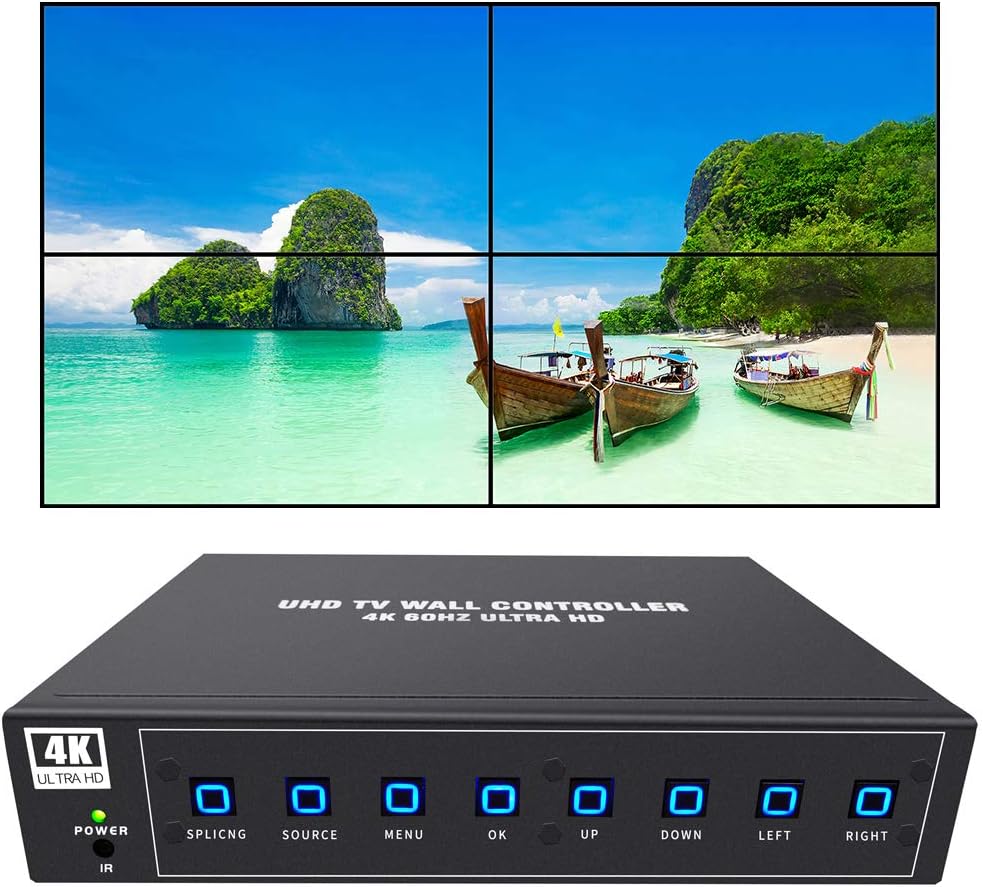
A video wall can make sense for signage, presentation spaces, a security-monitoring display or a shared operations dashboard. The expensive mistake is buying a box labeled “4K60, 2×2, four HDMI outputs” and assuming that every attached monitor will receive a unique 4K60 desktop feed.
This guide uses the ISEEVY ISV-TWC4-4K60 as a documented reference example because the manufacturer publishes detailed input, output and rotation specifications. The original Trending Deals article refers to ISEEVY in its metadata, but does not identify an exact model number; its existing Amazon short link could not be verified against a specific listing. Please verify the SKU before relying on any model-specific statement below.
1. 4K60 Input vs. HDMI Output: The Essential Distinction
“4K60 input” means that a particular input connection can accept a video signal of 3840 × 2160 pixels refreshed at 60 times per second. It does not automatically mean that the unit sends 3840 × 2160 at 60Hz to each display. Video-wall devices can scale, crop and distribute a source image into several output regions.
For the documented ISEEVY ISV-TWC4-4K60, the HDMI 2.0 and DisplayPort 1.2 input paths support 4K60, while the HDMI 1.4 input is listed at up to 4K30. The unit provides four HDMI outputs, with 1920 × 1080 at 60Hz among the listed output modes. By contrast, the ISEEVY ISV-TWC4-4K60P uses a different connection design and advertises up to 4K30 or 1080p60 per HDMI output, depending on mode. ISEEVY reference model specifications ↗ and ISEEVY 4K60P specifications ↗.
| Specification | ISV-TWC4-4K60 | ISV-TWC4-4K60P |
|---|---|---|
| 4K60 source input | HDMI 2.0 / DP 1.2 | HDMI / USB-C |
| HDMI outputs | 4, with up to 1080p60 listed | 4, with up to 4K30 or 1080p60 listed |
| Image rotation | 90°, 180°, 270° | 180° listed; do not assume 90° |
| Common layouts | 2×2, 1×4, 4×1, and others | 2×2, 1×4, 4×1, and others |
| Main buyer question | Need native portrait rotation? | Need this version's alternative output modes? |
For a typical 2×2 wall, one 4K source can be divided into four 1080p quadrants. This does not turn the source computer into a four-desktop workstation; it presents portions of one picture across the panels. Text size, scaling quality and visible seams depend on the source, controller settings and display hardware.
2. Video Wall vs. Extended Desktop vs. HDMI Splitter
The right device depends on what you want the screens to do. A video-wall controller usually splices one source image across a collection of displays. Some processors also accept multiple inputs or offer picture-in-picture layouts, but that is not the same as the operating system identifying four separate monitors.
| Goal | Usually appropriate | Important limitation |
|---|---|---|
| One image spread across four TVs | Video-wall controller | Output resolution and bezel compensation vary |
| Four independently movable app windows | Computer with suitable GPU/dock and display outputs | Host, GPU and dock must support display count and modes |
| Same picture duplicated to four screens | Compatible HDMI splitter | Mirrors instead of splicing or extending |
| Switch between two computers and shared peripherals | KVM / USB sharing setup | Video support depends on the specific KVM or dock |
If you plan to place browser analytics, chat windows, spreadsheets and an editor on separate movable monitors, a multi-monitor-capable computer setup is usually a better match. For peripheral-sharing considerations, our USB switch for two computers guide explains a related—but different—piece of workspace hardware.
3. Portrait Mode, 1×4 Layouts and Rotation Limitations
The terms 1×4 layout and 90-degree image rotation are easy to confuse. A 1×4 layout means one row or column arrangement of four displays, depending on the manufacturer's notation; it does not by itself guarantee that the pixels are rotated to match physically portrait-mounted panels.
ISEEVY explicitly lists 90°/180°/270° output rotation for the ISV-TWC4-4K60. The manufacturer describes only 180° rotation for the ISV-TWC4-4K60P. If vertical digital signage or portrait social-video playback is your main reason to buy, confirm both the rotation angles and whether the layout supports your intended source aspect ratio. Manufacturer rotation details ↗.
Also check bezel compensation, output ordering and mounting orientation. A wall that looks right in a product photo can still cut off text at panel borders or show a rotated picture at the wrong aspect ratio when installed.
4. Refresh Rate Is Not Proof of Zero Latency
A device that accepts a 60Hz signal can still add processing delay. Scaling, frame buffering, switching sources and rotation are separate operations; without a reproducible latency measurement, it would be misleading to promise “zero lag.” Similarly, an input specification does not prove the absence of dropped frames in every setup.
For displaying status dashboards, corporate presentations or non-interactive signage, a little latency may be acceptable. For competitive gaming, real-time production monitoring or interactive control, request a measured input-to-display latency figure and verify the mode used to obtain it. Neither a “4K60” badge nor a claim of professional-grade construction answers that question.
5. Pre-Purchase Compatibility Checklist
Before ordering a controller, compare the exact seller SKU and technical manual against your source devices and screens. This is especially important because visually similar ISEEVY units have different input ports, output capabilities and rotation options.
- Exact model: Match the printed SKU and rear-panel photograph to the manufacturer's specification page. Do not rely on a generic listing title.
- Input port and refresh rate: Check which HDMI or DisplayPort/USB-C connection actually supports 4K60, and whether your source can output that mode.
- Output mode: Confirm the per-panel resolution and refresh rate, not just the total wall input resolution.
- Required layout: Verify 2×2, 1×3, 1×4 or the exact orientation you need, including any portrait rotation angle.
- Number of source computers: Confirm whether you need one spliced feed, selectable sources, picture-in-picture, or genuinely independent desktops.
- Display and content compatibility: Check EDID negotiation, supported aspect ratios, HDMI/HDCP behavior and any restrictions for protected video content with the vendor.
- Audio and controls: Confirm HDMI or analog audio routing, remote-control functions, configuration presets and recovery after power loss.
- Installation requirements: Account for cable distance, power supply, cooling, mounting, return terms and access to updated documentation.
6. A Safer Setup Workflow for a Four-Panel Wall
- Draw the screen layout. Note screen orientation, physical order and the source material's aspect ratio.
- Verify a single display first. Connect the intended computer or media player at the resolution and refresh rate supported by the selected input.
- Connect all four HDMI outputs. Label each cable so you can map output 1 through 4 to the correct panel position.
- Choose the splice preset. Start with 2×2, then apply any necessary edge masking or bezel compensation supported by the actual unit.
- Test real material. Use a grid, text, moving video and the content you expect to show, checking scaling, synchronization and legibility.
- Save and retest. Confirm that your chosen settings survive a power cycle and that each screen reconnects correctly.
If the plan is to edit multiple camera feeds or inspect vertical content, review the source software's output method first. For capture and shooting accessories rather than video-wall distribution, see our DJI Osmo Mobile 7P buying guide and IPEVO document camera overview.
7. Who Should Buy a Video Wall Controller—and Who Should Skip It?
Worth considering
- Retail or exhibition signage spanning multiple TVs
- Conference-room displays showing one large source
- Operational monitoring walls using a prepared dashboard feed
- Installations that need supported rotation and bezel controls
Consider a different solution
- You want four independently addressable OS monitors
- Each panel must receive a dedicated 4K60 signal
- Gaming or other latency-critical interaction is essential
- You need rotation unsupported by the exact model
Frequently Asked Questions
Will one 4K60 video wall controller give me four separate computer monitors?
Not necessarily. A typical video-wall controller divides an image across several outputs. For four independent OS desktops, select a graphics, docking or display-expansion solution that explicitly supports four independent displays.
Are all four HDMI outputs 4K at 60Hz?
No. On ISEEVY's ISV-TWC4-4K60, 4K60 applies to compatible input ports; the manufacturer lists up to 1080p60 among per-output modes. Output capability varies significantly between models, so confirm the exact SKU.
Can I use a 1×4 portrait setup?
Only if the controller supports both your required display arrangement and rotation. The ISV-TWC4-4K60 explicitly lists 90°/270° rotation; ISEEVY's different ISV-TWC4-4K60P page lists 180° rotation, so do not assume the same behavior.
Does 60Hz guarantee no input lag?
No. Refresh rate and processing latency describe different properties. Ask the seller for latency measurements if your application is time-sensitive.
Can I use this controller for protected streaming video?
Possibly, but do not assume it. HDCP and other content-protection compatibility vary by controller, input source and output chain. Check the specific manual and permitted use before purchase.
Editorial Method and Sources
This guide is based on publicly available manufacturer specifications and a comparison of common video-wall requirements; we have not independently bench-tested, measured latency for or verified the Amazon listing of the controller shown. All model-specific specifications are attributed to the named products, not to every controller advertised as “4K60.” Research checked November 7, 2026.
- ISEEVY — ISV-TWC4-4K60 specifications (inputs, outputs, rotation and layouts) ↗
- ISEEVY — ISV-TWC4-4K60P specifications (different ports and output/rotation limits) ↗
- OREI — another controller illustrating the distinction between 4K60 input and 1080p60 outputs ↗
Related Workspace & Production Guides
Bottom Line: Verify the SKU Before You Buy
A 4K60 video-wall processor can simplify a single-image, multi-panel display. It is not automatically a four-monitor productivity dock, and its output resolution, portrait rotation and latency are not guaranteed by the “4K60” label. Compare the seller listing against the ISEEVY model specifications above before deciding.
Seller link note: The original Amazon short link below has been retained, but its final item/model and affiliate redirect could not be independently verified. Confirm the brand, model number, ports and return policy on the destination page. Do not assume it matches the ISV-TWC4-4K60 reference unit.
As an Amazon Associate I earn from qualifying purchases.
Check the Exact Model and Current Price on Amazon