
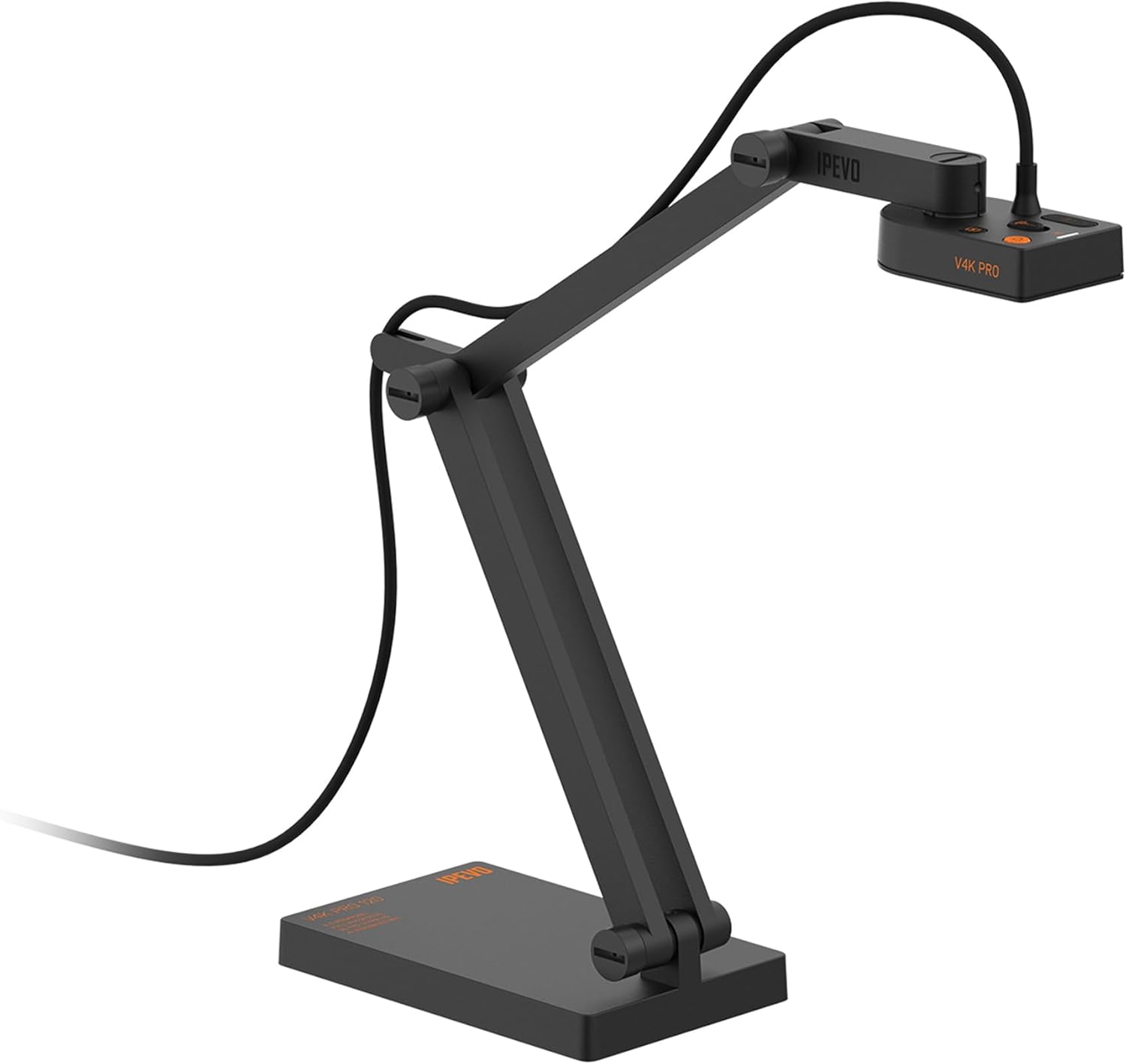
What is the IPEVO V4K PRO 120?
The V4K PRO 120 is a USB document camera intended for showing physical material to people watching on a computer or meeting screen. Its adjustable arm can point downward at worksheets and objects or upward toward a presenter. A document camera is often more useful than holding a notebook in front of a laptop webcam: the materials can stay on the desk while the presenter explains, annotates or demonstrates them.
IPEVO identifies this model as CDVU-17IP, part number 5-924-2-08-00. That matters because similarly named V4K cameras can differ in capture area, field of view, image resolution and software behavior. Compare both identifiers with the seller's product title before ordering. The specifications below are manufacturer-published; we have not performed original hardware testing.
Specifications that matter before you buy
| Feature | Published detail |
|---|---|
| Model / part | CDVU-17IP / 5-924-2-08-00 |
| Sensor and resolution | 8 MP Sony CMOS; up to 3264 × 2448 |
| Maximum stated frame rate | 30 fps at 3264 × 2448 |
| Field of view | 120° diagonal |
| Largest capture area | 440 × 330 mm (approximately 17.3 × 13 in) |
| Focus / zoom | Autofocus; focus from 10 cm; 12× digital zoom in IPEVO Visualizer |
| Audio and light | Built-in omnidirectional microphone with AI-assisted noise reduction; onboard LED |
| USB connection | Attached 1.5 m USB-A cable; USB 2.0 UVC interface |
| Physical size / weight | Folded: 277 × 78 × 48 mm; 581 g |
Important resolution distinction: IPEVO markets this as a “4K” document camera, but its published maximum image dimensions are 3264 × 2448 (4:3), not the 3840 × 2160 (16:9) commonly associated with UHD video. The manufacturer's 30 fps figure describes camera capture capability; it does not promise that Zoom or Teams will send that resolution to every participant. Conferencing applications can compress, crop, limit or downscale video based on their settings and connection quality.
Wide-angle capture: useful for teaching, with tradeoffs
The 120° diagonal field of view is attractive when you need to show a large sheet, map, textbook or tabletop prototype without raising the camera excessively. IPEVO lists a maximum document area of about 17.3 × 13 inches (44 × 33 cm), useful for many A3/tabloid-style demonstrations. The arm also allows different views of the material and can point toward a presenter for a secondary webcam angle.
However, wide-angle optics can make material near frame edges look smaller or more distorted than material at the center. For dense text, graph paper or tiny components, try centering the key detail, moving the camera appropriately and checking focus before the session. The advertised 12× zoom is digital zoom through Visualizer, not an optical zoom lens that adds real sensor detail.
USB, operating systems and app compatibility
The cable ends in USB-A, and the camera uses the standard USB Video Class (UVC) interface. IPEVO lists Mac, Windows and Chromebooks equipped with USB-A ports, and says the camera works with common conferencing tools. Basic camera recognition generally does not require a proprietary video driver, although the app must be permitted to access the camera and you may need Visualizer for extra controls.
| Setup | What to check |
|---|---|
| Windows / Mac with USB-A | Connect directly, allow camera/microphone access, then choose IPEVO in the app's device settings. |
| USB-C-only laptop | Use a suitable USB-A-to-USB-C adapter or hub; check port power and compatibility with the camera before a live event. |
| Chromebook | IPEVO lists USB-A Chromebook compatibility; confirm the selected web app can access external UVC cameras. |
| Zoom / Teams / Google Meet | Select the camera as a video source; choose the desired microphone separately. Resolution and sharing controls depend on the app. |
| OBS / Camtasia | Add it as a camera source and test frame rate, resolution and microphone routing in your recording setup. |
| USB-C iPad | IPEVO lists Visualizer recognition on iPadOS 17+; external-camera support varies by app and requires a compatible connection. |
IPEVO's published computer requirements include older operating-system baselines. Those numbers do not prove compatibility with every current OS update, managed work laptop or school security policy. If your organization restricts USB peripherals, confirm with IT before purchasing. The device has no stated HDMI output, so buyers who need a direct feed to a projector without a computer should consider an HDMI-capable document camera instead.
How to set it up for Zoom or Microsoft Teams
- Position the camera. Place the stand on a stable surface and aim the head at your document or demonstration.
- Connect it. Plug the attached USB-A lead into the computer or a compatible adapter. Avoid untested USB hubs before an important session.
- Allow access. In your operating-system privacy settings, enable camera and microphone permission for the meeting application.
- Select the video source. Open Zoom or Teams settings, choose the IPEVO camera, and inspect the preview. Rotate or reframe the material if necessary.
- Select and test audio. Try the camera's microphone and compare it with your existing headset or USB mic; choose the clearer source and prevent unwanted duplicate microphones.
- Run a trial call. Check small text readability, shadows, exposure, autofocus, voice clarity and whether recipients can actually read your material after conferencing compression.
For annotation or additional camera adjustments, IPEVO lists its Visualizer software; for recording or compositing, it also lists OBS as compatible. In an education setting, practice the exact lesson view before the session: the local preview may be clearer than a participant's compressed meeting feed.
Built-in microphone and AI voice noise reduction
The V4K PRO 120 has an omnidirectional microphone and an AI-enhanced voice feature that IPEVO attributes to intelliGo technology. The camera includes a physical noise-reduction on/off control. This can be convenient when the presenter wants to travel with just one peripheral instead of bringing a separate mic.
Still, noise reduction is not silence. It may soften fan noise or typing in some circumstances, but cannot guarantee removal of all voices, keyboard sounds, echoes or street traffic. Audio quality depends on the camera's distance from your mouth, room acoustics, background noise and the conferencing app's own processing. A headset microphone or a dedicated USB mic can be more suitable when speech is the main priority. Test whether enabling both IPEVO processing and your meeting app's noise suppression affects voice quality.
Who should buy it — and who should skip it?
Good fit
- Teachers showing worksheets, books, diagrams or A3/tabloid materials
- Remote presenters explaining physical mockups or sketches
- Small-business demonstrators who need an adjustable overhead USB camera
- Teams that value integrated light and a backup microphone
Look elsewhere if
- You need direct HDMI output without a connected computer
- You require guaranteed 3840 × 2160 conferencing video or 60 fps at full resolution
- You need optical zoom for fine detail at a distance
- Your main goal is studio-quality audio or a subject-tracking conference camera
Document camera vs. webcam vs. phone: the buying decision
| Tool | Best at | Main compromise |
|---|---|---|
| IPEVO V4K PRO 120 | Overhead documents and tabletop demonstrations | USB computer/app required; wide-angle edges may be less ideal for tiny details |
| Conventional webcam | Face-to-face meetings and stable eye-level framing | Often awkward for full-size paper on a desk |
| Phone on an overhead mount | Flexible mobile camera workflows | Requires a suitable mount, app integration and charging plan |
If you primarily record moving handheld video instead of fixed tabletop presentations, our DJI Osmo Mobile 7P guide covers a different category of creator hardware. For permanent multi-screen displays, see our video wall controller compatibility guide.
Seven checks before ordering
- Verify V4K PRO 120 / CDVU-17IP / 5-924-2-08-00 on the actual listing, not just a generic V4K title.
- Confirm you need overhead document capture, rather than a dedicated face-tracking conference webcam.
- Measure your desk area and largest document against the quoted 440 × 330 mm capture area.
- Check your laptop's USB ports and any USB-C adapter or institutional device restrictions.
- Confirm your required apps and OS support an external UVC camera and the specific controls you need.
- Decide whether the built-in mic is sufficient or whether you already have a better headset microphone.
- Check the current price, seller, return policy and included accessories before purchasing.
Frequently asked questions
Is the IPEVO V4K PRO 120 really 4K?
IPEVO advertises it as a 4K document camera and specifies up to 3264 × 2448 pixels at 30 fps. That is an 8 MP 4:3 image, not the same as 3840 × 2160 UHD video. Conferencing output may be lower.
Does it work with Zoom and Microsoft Teams?
Both applications appear on IPEVO's official compatibility list. Choose the IPEVO camera in the meeting app's video settings and test the microphone separately. Permissions, device policy and app versions can affect successful setup.
Can I connect it to a USB-C-only laptop?
Its attached cable uses USB-A. A compatible USB-A-to-USB-C adapter or hub can provide the connection; confirm power and data support and test your specific setup.
Does its AI microphone remove all background noise?
No. IPEVO offers AI-assisted voice enhancement and noise reduction, but actual results depend on the room, microphone position and software processing. A dedicated mic may still perform better for speech.
Can I use it without a computer, directly over HDMI?
The published specifications list a USB 2.0 UVC connection, not an HDMI output. For standalone HDMI projector use, select a product that specifically supports HDMI.
Research approach and official sources
This is a manufacturer-documentation-based editorial guide. We did not test the hardware, measure audio suppression or benchmark video quality. Features and compatibility come from IPEVO's published material; practical recommendations describe purchasing considerations, not original test results. The following are the main sources checked November 7, 2026:
- IPEVO V4K PRO 120 official technical specifications — resolution, fps, USB interface, camera features and system requirements.
- IPEVO product overview — intended use, sensor and capture area.
- IPEVO V4K PRO 120 support page — compatible applications and quick-start resources.
Related setup and equipment guides
The bottom line
The IPEVO V4K PRO 120 deserves consideration if your priority is showing documents or tabletop objects in online lessons and meetings. The broad capture area and USB camera compatibility are its strongest reasons to buy. It is not a shortcut to guaranteed UHD meetings, flawless audio or standalone HDMI presentations. Compare its real features with your workflow before choosing it.
Check the exact model, included USB cable, current seller details and availability on Amazon. The original affiliate link is retained; its final redirect was not independently verified.
As an Amazon Associate I earn from qualifying purchases.
Check Current Price on Amazon