
Use a USB peripheral-sharing switch when two computers need the same keyboard, mouse, webcam or printer one computer at a time. Keep your display connected to each computer independently and select its input separately. If you want a single button to change both USB devices and monitor video, start by researching a compatible KVM instead.
What a USB switch actually changes
Picture a work laptop beside your personal desktop. The display has two inputs, but you dislike unplugging a webcam and mouse at the end of each workday. A USB switch fixes the peripheral side of that problem: one or more USB devices attach to the switch, while a host cable runs to each computer. When you press the button, those USB devices disconnect from one computer and become available to the other.
That handoff is not simultaneous sharing, and ordinary USB peripheral ports do not magically send HDMI or DisplayPort video. Your monitor still needs its own input-switching method. This distinction prevents buying a product that solves only half of the workstation problem.
A work laptop and personal PC where the monitor already has two usable inputs, but the keyboard, mouse and webcam should move together. Confirm that any employer security policy permits shared USB peripherals.
If your setup includes a USB-C/Thunderbolt laptop dock that charges the computer and carries video, do not assume it will work through a basic USB-A sharing switch. Plugable explicitly excludes USB-C and Thunderbolt docks from USB3-SWITCH2 compatibility.
Two useful models to compare
These are fit-based examples using the brands' published specifications—not laboratory rankings or claims about reliability from personal use.
Plugable USB3-SWITCH2
What it offers: Two host connections and one downstream USB 3.0 Type-A device port, with a manual toggle and status LEDs. Plugable specifies USB 3.0 operation up to 5 Gbps.
Best when: You have one device to share or already own a compatible powered USB hub for keyboard, mouse and webcam.
Tradeoff: The switch alone does not have separate downstream ports for three accessories.
Check on Amazon ↗IOGEAR GUS432
What it offers: Four USB 3.0 Type-A device ports shared between two computers, with an external wired selector button, status indicator and optional micro-USB power input.
Best when: You prefer separate ports for a keyboard, mouse, webcam and one extra peripheral without a separate hub.
Tradeoff: It still does not perform ordinary HDMI/DisplayPort switching.
Manufacturer specifications ↗The Amazon button opens a specific Plugable listing associated with the model reviewed; confirm the seller, version, current offer and price. No current stock or price is promised. The IOGEAR button is a non-affiliate manufacturer link.
| Decision factor | Plugable USB3-SWITCH2 | IOGEAR GUS432 |
|---|---|---|
| Computers | 2 | 2 |
| Downstream USB device ports | 1 USB-A port; add a hub for several devices | 4 USB-A ports |
| USB standard | USB 3.0, up to 5 Gbps | USB 3.0, up to 5 Gbps |
| Switch method | Button on unit | Wired remote selector button |
| Monitor HDMI/DP switching | No native pass-through | No native pass-through |
| USB-C/Thunderbolt dock video & charging | Not supported | Not a documented feature; check exact setup |
Wiring a two-computer desk the simple way
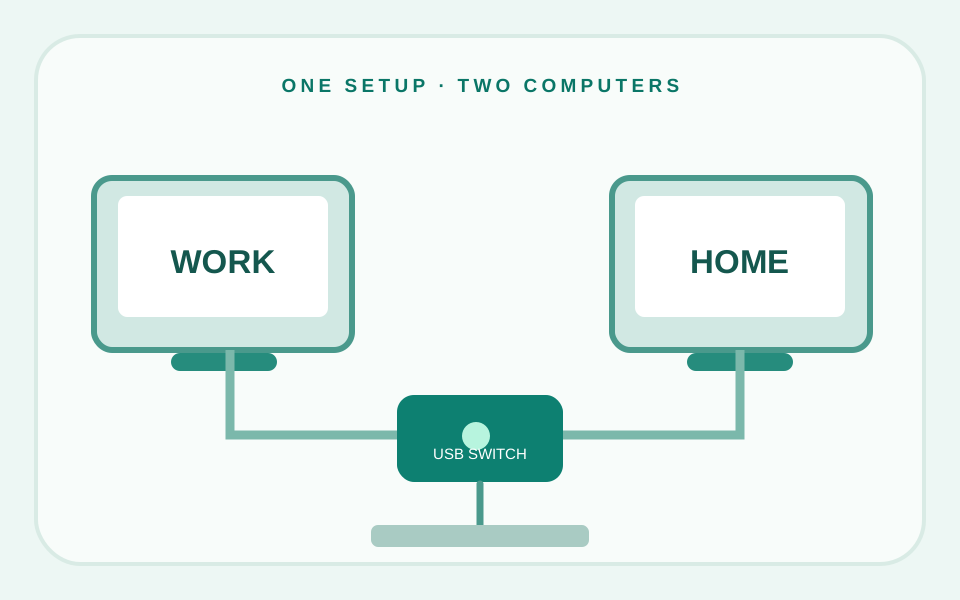
- Connect the monitor separately: Use an appropriate input from each computer. If your display has only one input, you may need a video switch or full KVM.
- Attach the switch to both computers: Use the supplied data cables. For USB-C-only laptops, a suitable USB-A adapter may be needed for host connectivity, but not for dock power or video.
- Connect the peripherals: For Plugable, attach one device or a compatible hub. For GUS432, use the available USB-A ports.
- Budget for USB power: Webcams and several connected accessories can draw more power than a bus-powered setup delivers. Use a properly powered hub when warranted by the equipment's specifications.
- Test both machines: The switch moves the USB connection. After each handoff, a webcam or USB audio device may need to be recognized again; meeting apps might require manual device selection.
A USB switch does not let the same webcam appear live to two computers simultaneously. Do not use a shared USB storage drive without ejecting it safely on the active machine first.
USB switch vs KVM: which should you buy?
| Your actual problem | Better starting point | Why |
|---|---|---|
| Share keyboard and mouse; keep monitor inputs separate | USB peripheral switch | Lower complexity; display stays connected directly |
| Share multiple peripherals and a webcam | USB 3.0 switch + powered hub or multi-port sharing switch | Enough connections and power for USB equipment |
| Change monitor video and USB together | Full KVM | Designed to route both video and USB between hosts |
| Share laptop charging and USB-C video | Purpose-built compatible USB-C docking/KVM solution | USB-A switch is not a replacement for Power Delivery or Alt Mode |
For a full KVM, check not just the number of computers but the exact connector type, display resolution, refresh rate, keyboard compatibility and whether the laptop needs USB-C charging. A vague "4K" label alone does not guarantee that the switch meets your setup.
The 60-second pre-purchase checklist
- How many computers need access to the USB devices?
- How many downstream ports do you need—and are they USB-A?
- Is the webcam USB 2.0 or USB 3.0, and what does it require for power?
- Will a powered hub be needed for several connected devices?
- Does your monitor already support multiple video inputs?
- Does a managed work laptop permit the peripherals?
- Are you expecting HDMI switching, laptop charging or Thunderbolt features that an ordinary USB switch does not provide?
For remote presenters, it can also help to review our document-camera buying considerations and noise-cancelling headset review. Those address different parts of a productive desk setup.
Frequently asked questions
Can I share a keyboard, mouse and webcam between two computers?
Yes, if the connected switch and any hub provide the right USB ports and power. Only the selected computer uses those devices at a time.
Will a USB switch switch my monitor too?
Not through ordinary USB peripheral ports. Use your monitor’s input selector or a KVM designed to switch video and USB.
Can a USB-C-only laptop use the Plugable model?
A compatible USB-C-to-USB-A data adapter may work for a normal USB host connection. It does not add USB-C Power Delivery, DisplayPort Alt Mode or Thunderbolt docking functionality.
Is a powered USB hub required?
Not always. It depends on the combined requirements of the attached devices and the switch’s power budget. A webcam plus other active peripherals may benefit from an externally powered hub.
Does the switch transfer files directly between PCs?
No. The switch changes which computer owns attached USB peripherals. It is not a computer-to-computer data-transfer cable.
How we researched this guide
We examined manufacturer and software-vendor documentation available on November 5, 2026. We did not conduct laboratory tests or verify live Amazon inventory. Product revisions, firmware, software versions and seller offers can change, so check the exact model before purchasing.